Daydream Basics
How Daydream Works

Shane Labelle
· 3 min read
Daydream Film develops your photos the way film would. Bring in a photo, pick a film, and save. When you want more, every part of the look is a control you can tune.
Step 1
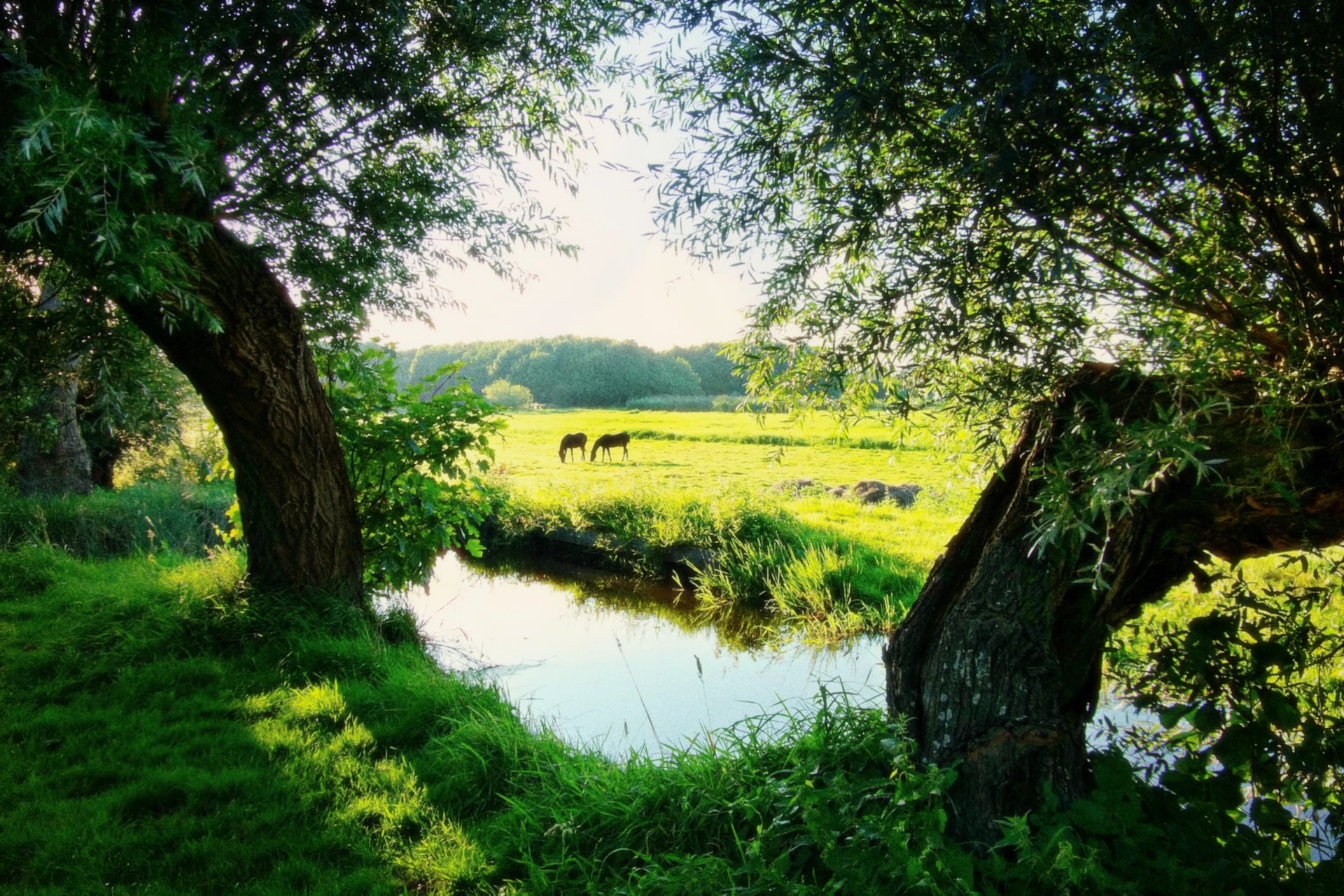
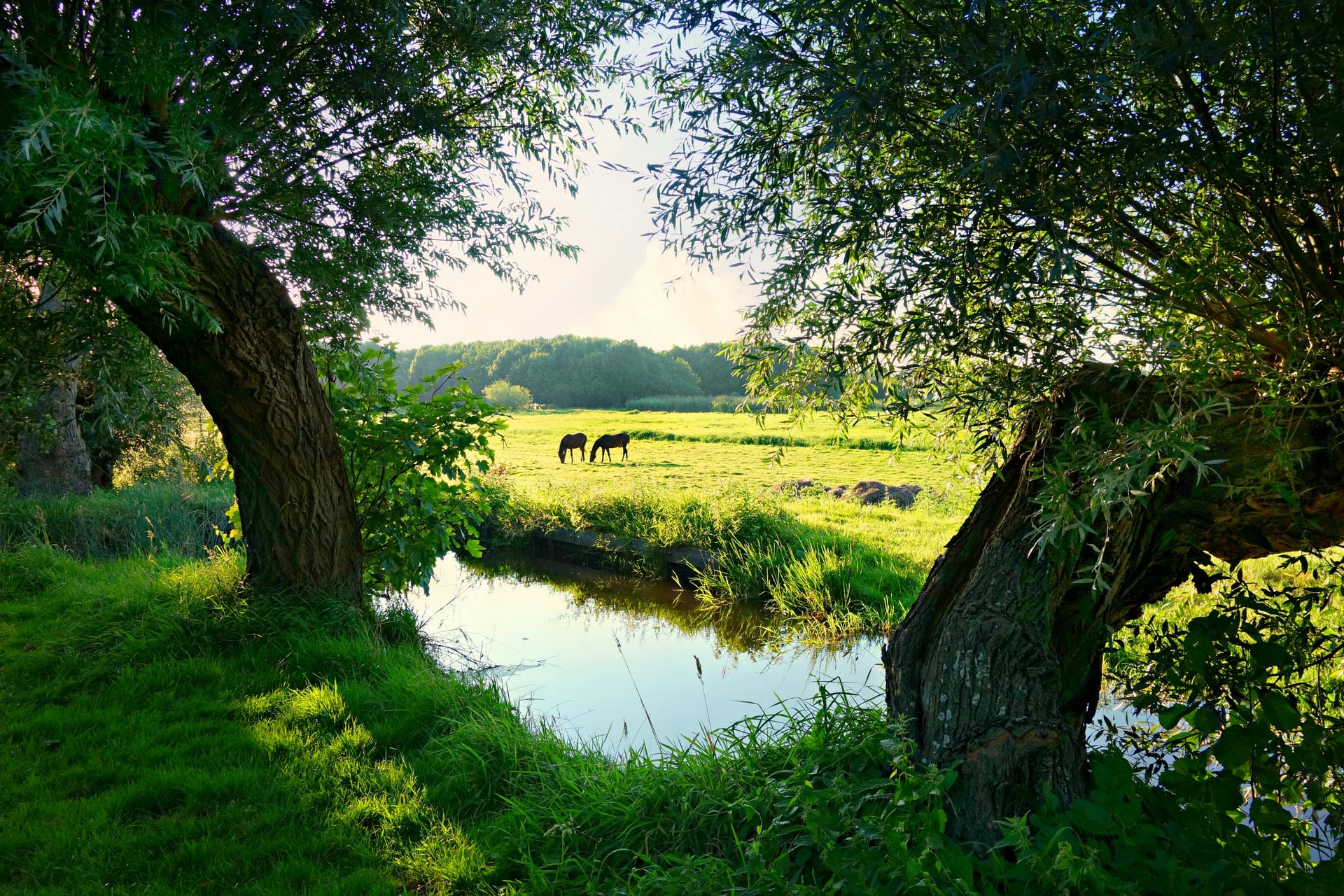
Bring in a photo
Start with any photo in your library, or shoot one with Daydream's camera.
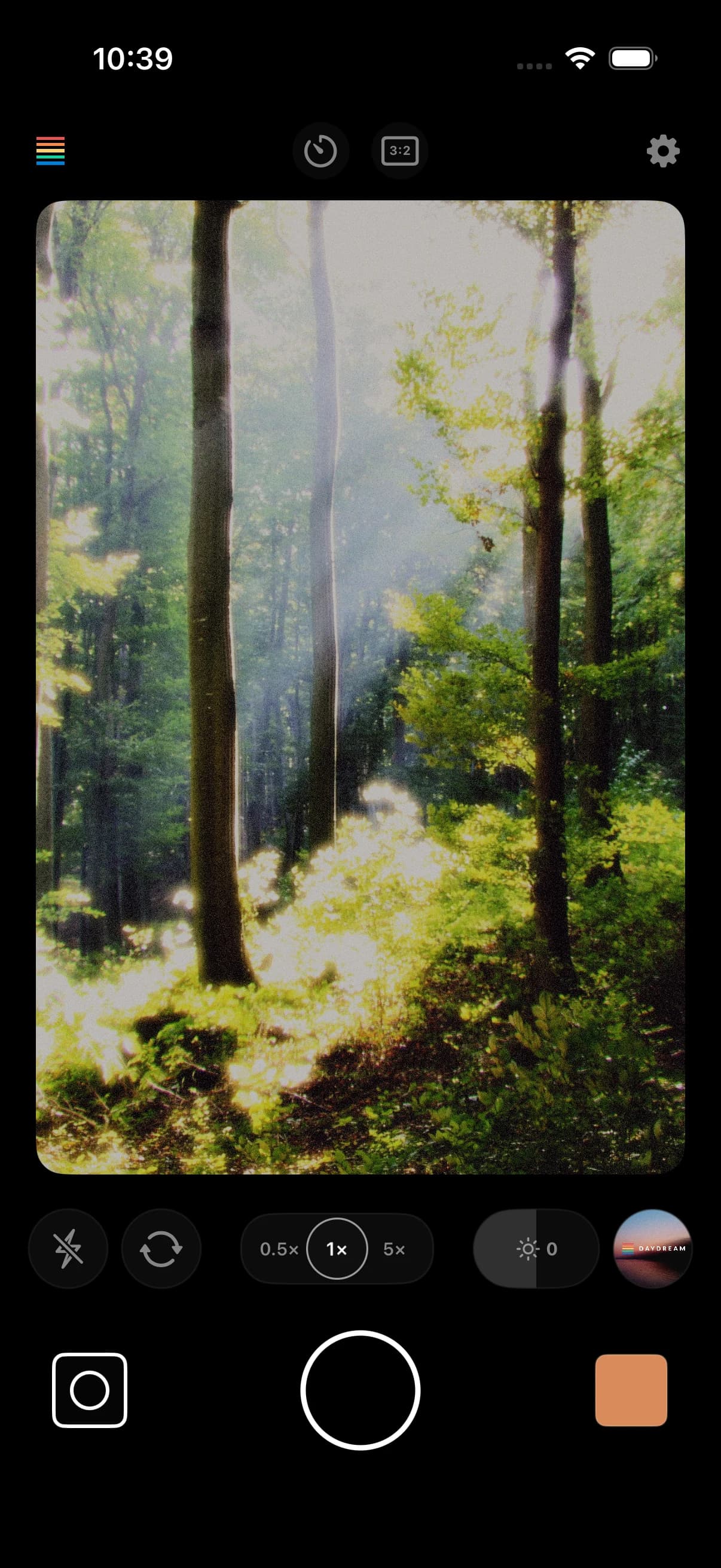
The camera works the way you expect: tap to focus, pinch to zoom, and pick a frame shape. Choose a film before you shoot. The viewfinder stays plain, and each photo opens in Daydream already developed with that film.
Step 2
Pick a film
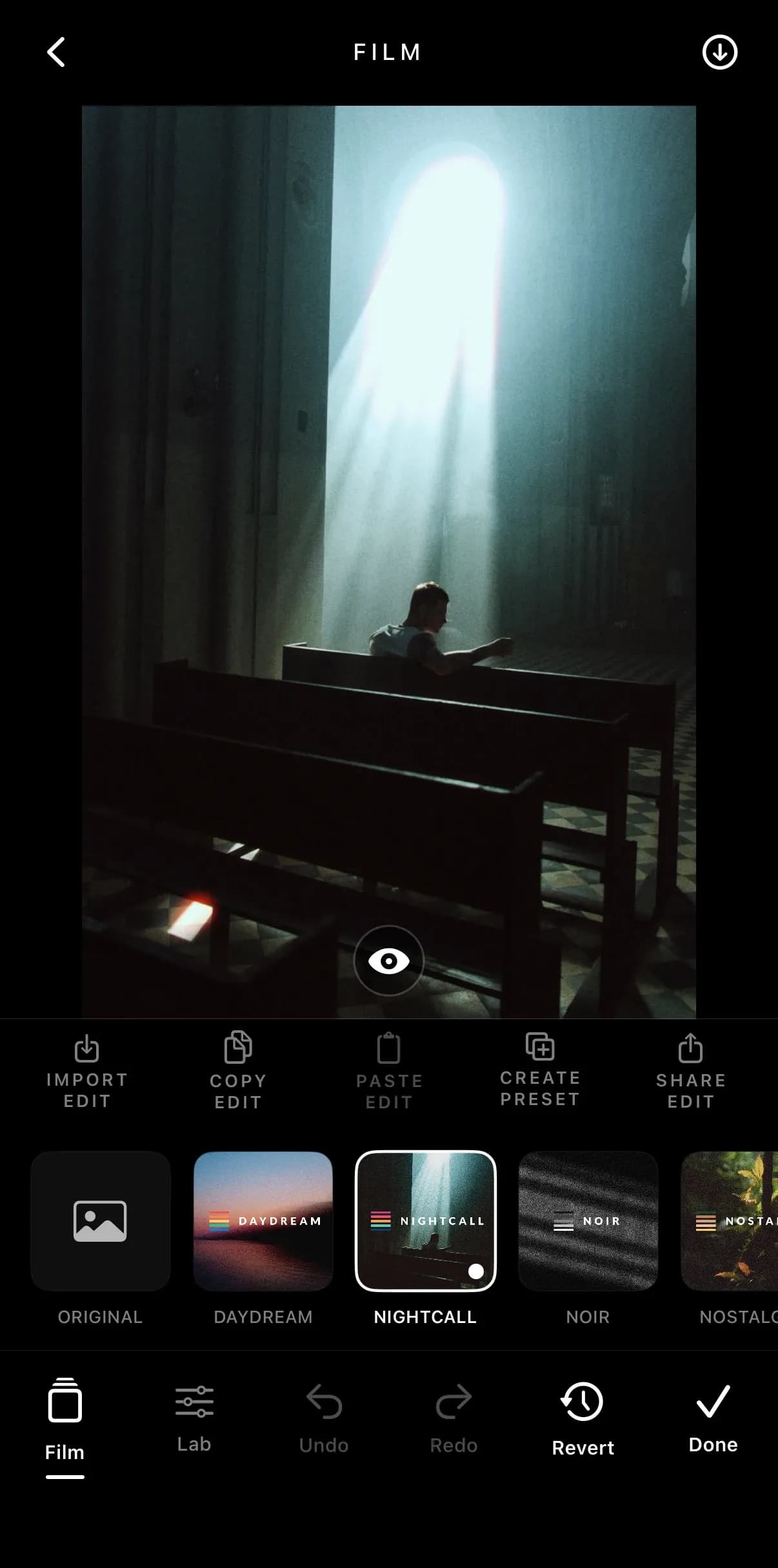
Under your photo is a strip of films. Original is your photo as it came in. Next to it are Daydream, Nightcall, Noir and Nostalgia.
Tap a film to develop your photo with it, and tap another to see the difference. Each one is its own look, and you can see all four on the presets page. Presets you save yourself join the same strip.
Step 3
Tune it in the Lab
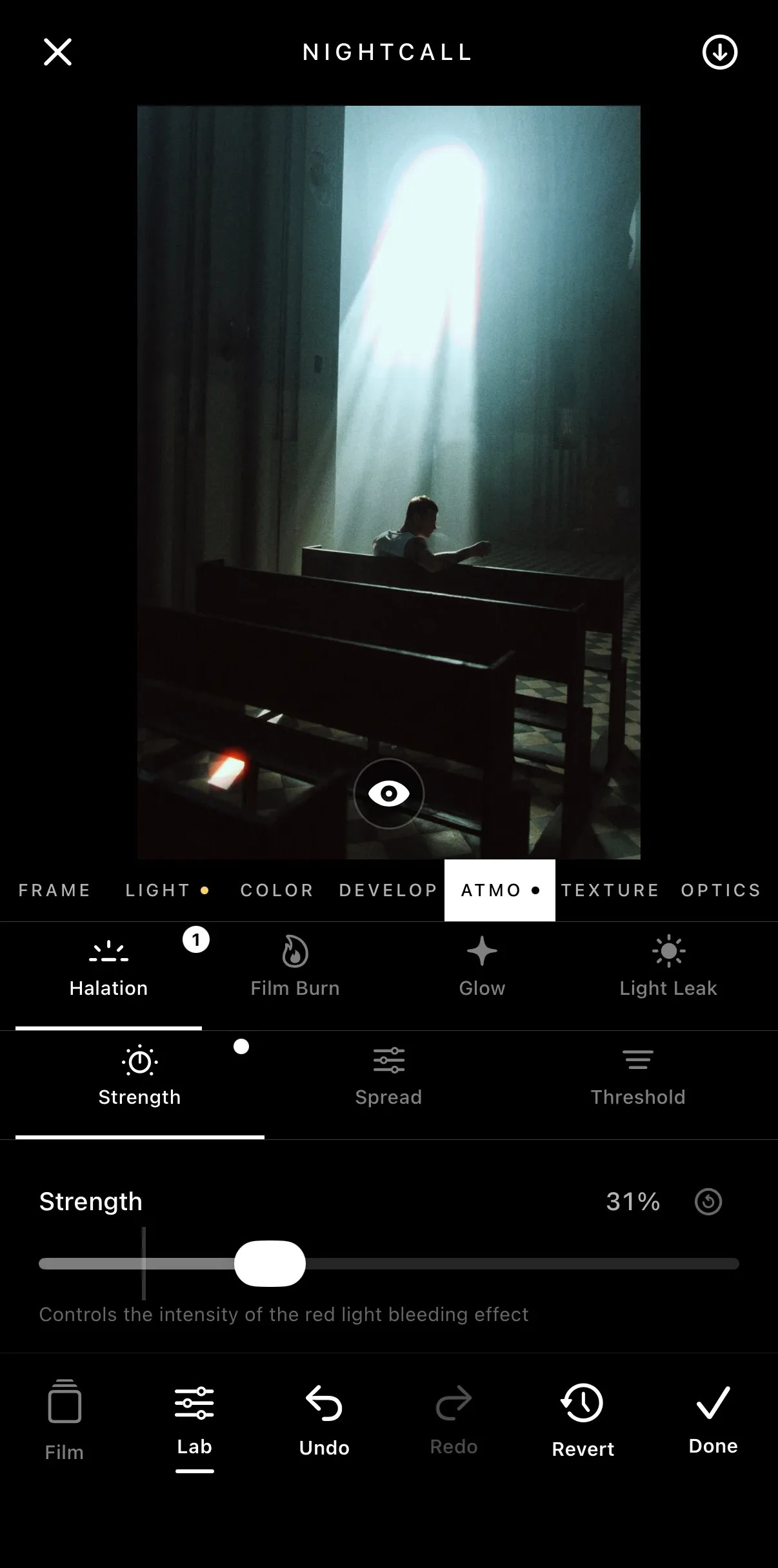
Tap Lab to open the controls behind the film. They're grouped the way a photo is made: Frame, Light, Color, Develop, Atmosphere, Texture and Optics. The Lab works on top of a film, so pick one first.
Choose a group, then an effect. Atmosphere, for example, holds Halation, Film Burn, Glow and Light Leak. Each effect has its own sliders: Halation has Strength, Spread and Threshold.
A dot marks anything you've changed. A faint line on each slider shows where it started, and the reset arrow takes it back. Curious what an effect does? Every effect is explained on its own page.
Step 4
Compare, undo, start over
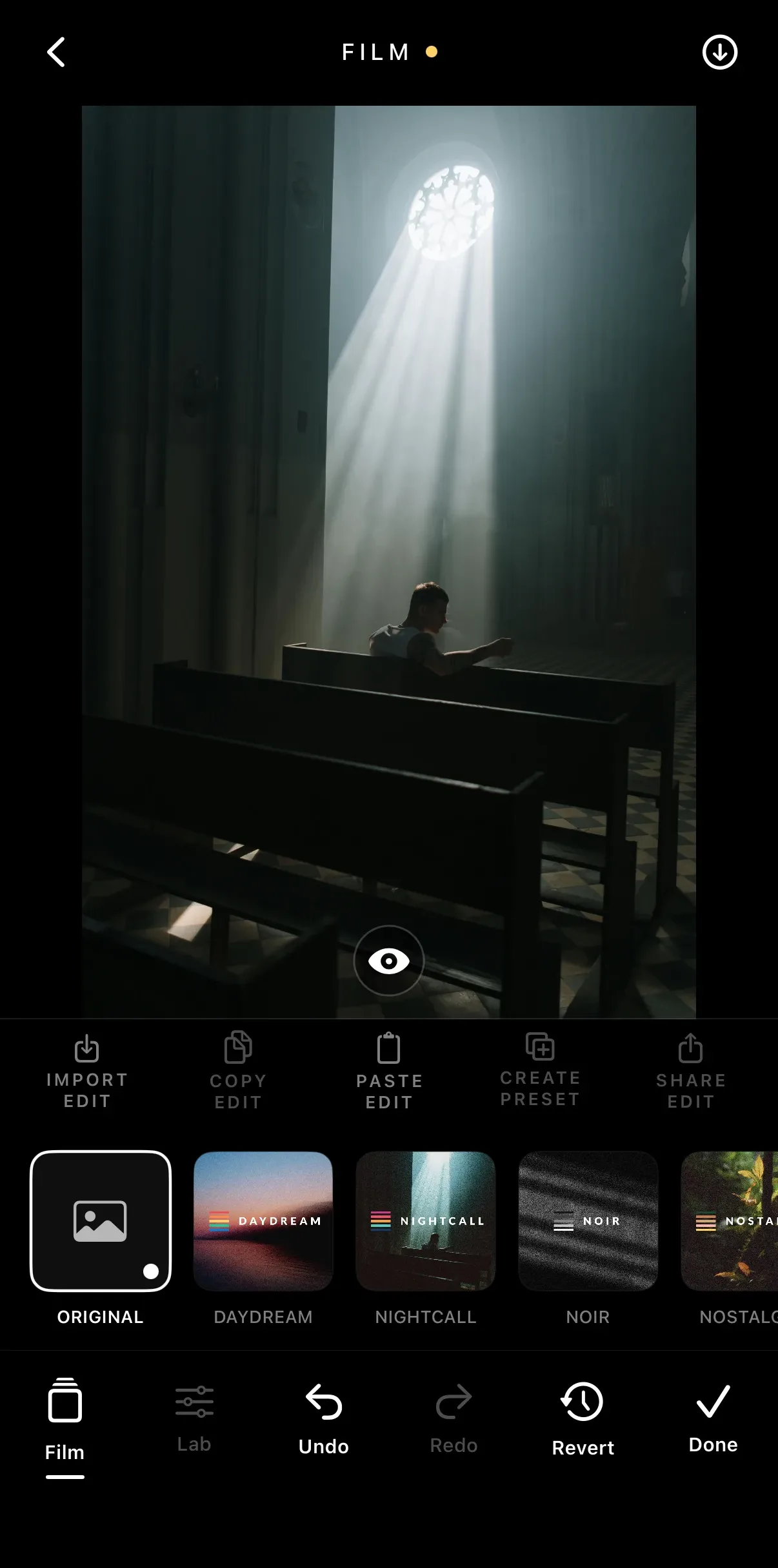
Press the eye to see your photo without the edit, and again to bring it back.
Undo and Redo step through every change you make: films, sliders and crops. Revert removes the whole edit, after asking first.
Step 5
Save it
Tap the save button at the top of the screen. Daydream saves a full-resolution copy to your Photos. Your original is never changed, so you can come back and edit it again.
Step 6
Share your look
Like a look? Create Preset saves it under a name, ready for your next photo. Copy Edit and Paste Edit move a look from one photo to another.
Share Edit turns your look into a preset card: your photo, the recipe behind it, and a code. Send the card or just the code. A friend pastes the code into Import Edit, and your exact look lands on their photo.