
Color
HSL
HSL adjusts the hue, saturation and luminance of one color range at a time, so you can deepen the blues or warm the greens without touching anything else.
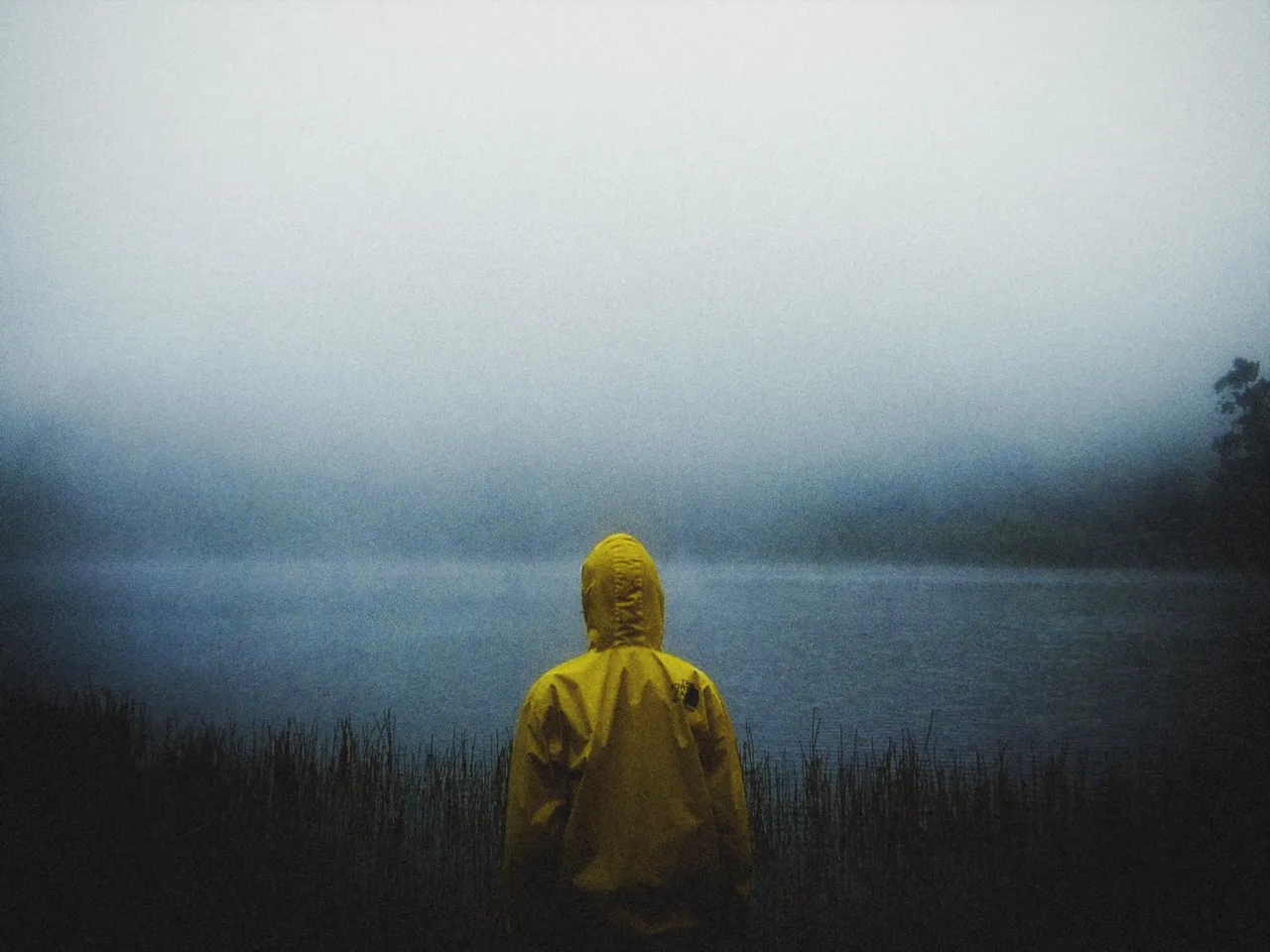

Every stop is a real Daydream render. Only the yellow hue setting changes (orange hue moves with it, as the jacket's yellow sits between the two).
Why it happens
How do you change one color without the rest?
Color timers did this with filters on every print, one hue family at a time.
In Daydream
Industry-standard selective color grading that lets you adjust specific color ranges independently, like the HSL panel in desktop photo editors.

Up close
What does HSL do to a photo?
A tight crop from the full-size render. Left is −100 yellow hue, right is +100 yellow hue. Drag the line to compare.
What changes
- Target specific colors (reds, oranges, yellows, greens, cyans, blues, purples, magentas)
- Shift hues, adjust saturation, or change luminance for each color range
- Fine-tune specific colors without affecting others
The controls
How do you adjust HSL?
The dial above moves yellow hue (orange hue moves with it, as the jacket's yellow sits between the two).
| Control | Range | What it does |
|---|---|---|
| Hue (per color) | -100 to +100 | Shift that color toward its neighbors, by up to 30–45° |
| Saturation (per color) | -100 to +100% | Adjust color intensity |
| Luminance (per color) | -100 to +100% | Adjust brightness |
Base for every render: the Daydream preset at its defaults.
When to reach for it
When should you use HSL?
Use this to fine-tune skin tones, sky colors, or any specific color that needs adjustment.
Best for
- Skin tone correction
- Sky enhancement
- Selective color grading
Move one color, not the photo.
Join the iOS Beta
Try HSL on your own photos. Join the iOS beta and shoot with Daydream Film.